


Chapter 2: Basic Commands
Foreword
We recommend that you not use AI to do the exercises, since you are still in the learning phase.
Introduction
Even though there is a multitude of commands in Linux, a few of them turn out to be essential to make the most of this system. Chances are you will use them every day.
Prerequisites
- Have a virtual machine or a PC or a Linux environment (ideally Ubuntu)
- Be resilient 😜
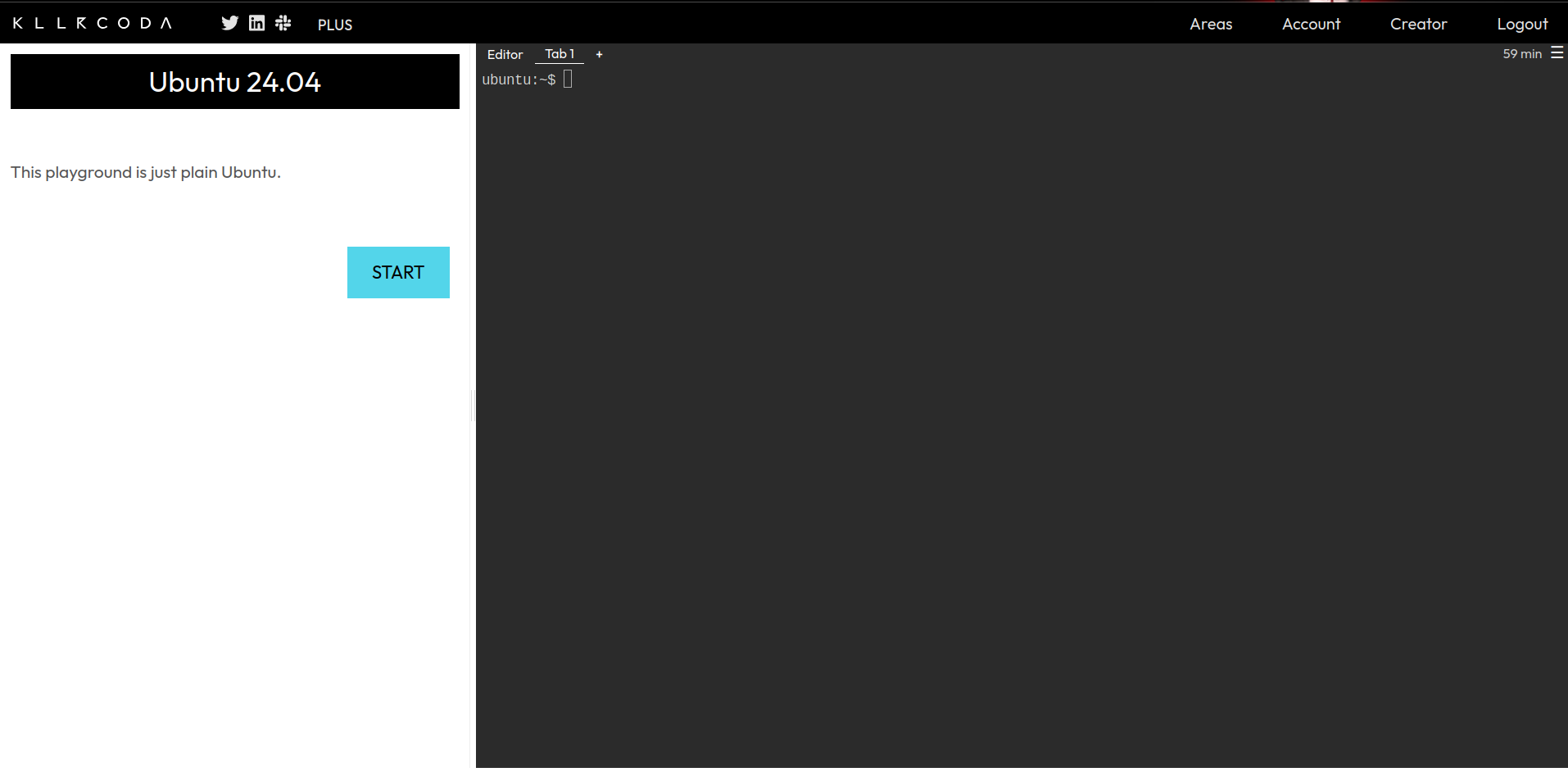
Info: If you don’t have a Linux environment available, you can register at https://killercoda.com and go here https://killercoda.com/playgrounds/scenario/ubuntu to get access to a virtual machine running Ubuntu 24.04 (without a graphical interface of course!!) for 1 hour, renewable for free.
You will then have this view:
Bonus for the Killercoda team 👨🏾💻👩🏾💻:
- Open your terminal
- Run:
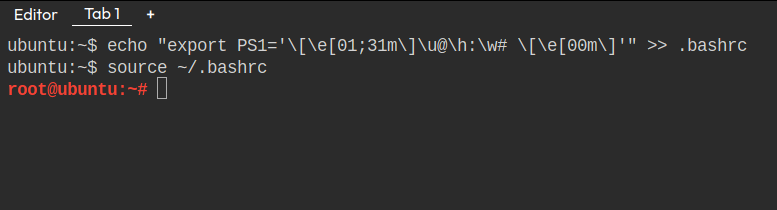
echo "export PS1='\[\e[01;31m\]\u@\h:\w# \[\e[00m\]'" >> ~/.bashrc
source ~/.bashrc
You will now have this view:
Discovering the Linux terminal
Who says Linux terminal, mainly says command prompt and command interpreter (shell). But also commands.
Example of a Linux terminal:
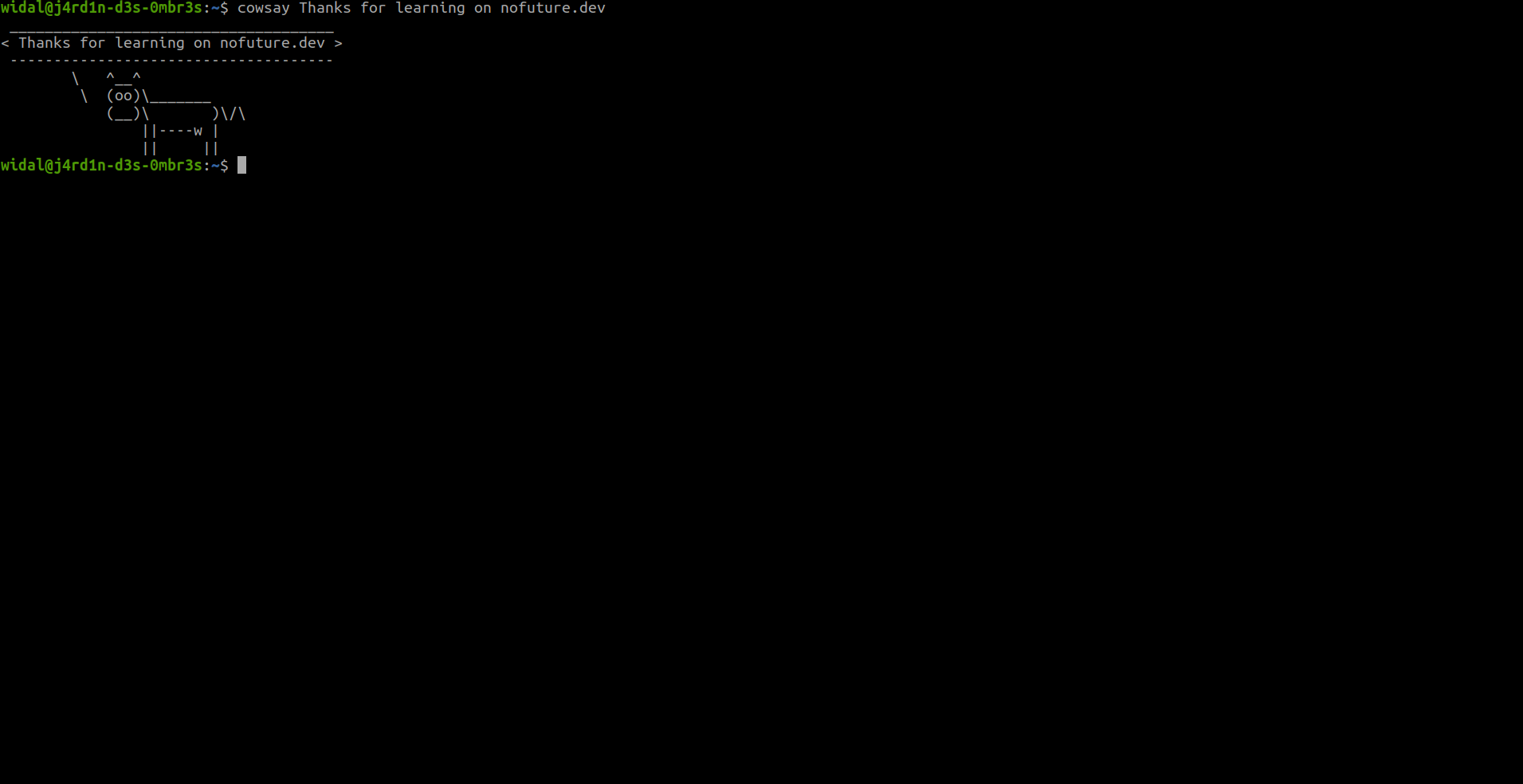
- The command prompt
- This is the line that indicates where you are and who you are in the system. It can vary depending on the distribution and the configuration, but it often looks like this:
Example:user@machine:directory$user: Your username.machine: The name of the host (computer).directory: The current folder (e.g.~for the home folder).$: Symbol for a standard user (#for root).
- This is the line that indicates where you are and who you are in the system. It can vary depending on the distribution and the configuration, but it often looks like this:
- The command interpreter (shell)
- The program that executes the commands you type. The most common is Bash (Bourne Again Shell), but others exist such as Zsh, Fish, or Tcsh.
- It translates your instructions into actions for the system.
- Commands
- The instructions you enter, such as
ls,cd,cat, or evencowsay, etc. In this regard, it’s worth noting that they can be:- Internal: Built into the shell (e.g.
cdto change directory). - External: Programs or applications installed on the system, independent of the shell. The shell looks them up and then runs them when they are called (e.g.
lsto list files).
- Internal: Built into the shell (e.g.
You can identify whether a command is external or internal by running:
type -t <command>

or

type <command>
Below is an example of the output:widal@j4rd1n-d3s-0mbr3s:~$ type -t cd builtin # Indicates an internal command widal@j4rd1n-d3s-0mbr3s:~$ type cd cd est une primitive du shell widal@j4rd1n-d3s-0mbr3s:~$ type -t cat file # Indicates an external command widal@j4rd1n-d3s-0mbr3s:~$ type cat cat est /usr/bin/cat # External command: the shell shows where the program is located
- The instructions you enter, such as
The Linux system tree
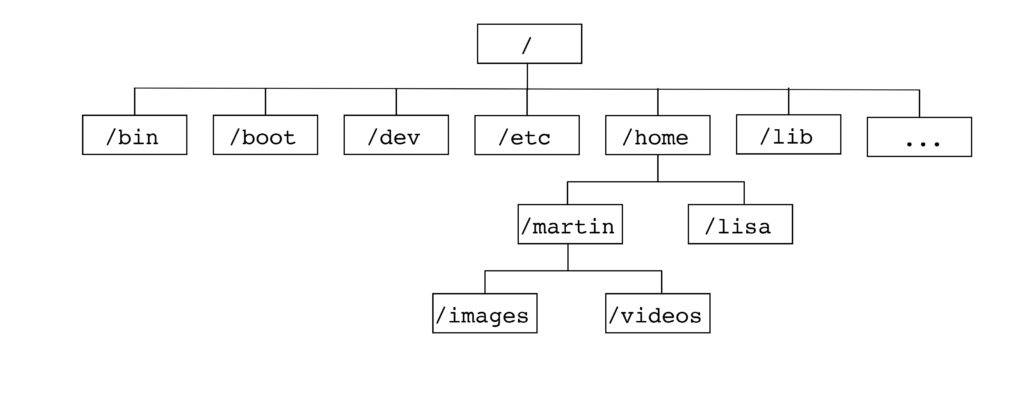
The Linux system tree is like a big, well-organized cabinet full of drawers and folders. It’s the way files and directories are structured in a Linux system. Everything starts from a single point called the root, denoted simply by a slash ” / “. From there, everything is organized into branches, like a tree (hence the name “tree structure”).
Here are the main directories and their role:
- bin/ : (binary) User programs
- sbin/ : (super binary) Superuser programs
- lib/ : (library) Libraries used by applications
- etc/ : (et caetera) Application configuration
- tmp/ : (temporary) Temporary directory accessible by everyone
- var/ : (variable) Application data whose size varies (database, website, system logs, etc.)
- boot/ : (boot) Linux kernel loaded at startup
- dev/ : (devices) Access to devices
- proc/ : (process) Virtual directory containing information about processes, the kernel, and its modules used by system commands
- opt/ : (optional) Proprietary or non-standard software
- root/ : Home directory of the root user
- home/ : Home directory of users, where their files are located
- mnt/ : (mount points) Directory in which devices are mounted
Below is a small illustration:
To test 👨🏾💻👩🏾💻:
- Open your terminal
- Run:
tree -d -L 1 /
Extra info:
The “/etc” directory mainly contains configurations related to your entire Linux system, but there is also a configuration directory called “.config”, usually found in each user’s home directory ( /home/username ). It’s a hidden directory containing configurations specific to applications, on a per-user basis. For your information, any file or folder name starting with a dot (“.”) is a hidden item.
Comparison between the Linux and Windows directory trees (BONUS)
Let’s compare the Linux directory tree with that of Windows, as if we were comparing two cabinets with different storage logics.
Linux: The unified tree (everything starts from /)
In Linux, everything starts at the root (/) and is organized into a single large structure. Each directory has a well-defined role:
- /home : Users’ personal space.
- /bin : Basic tools.
- /etc : Configuration files.
- etc.
It’s a unified system: no matter where you install Linux or which disk you add, everything is seen as a branch of this single tree. For example, an external disk might be mounted under /mnt or /media.
Windows: A structure based on drive letters
In Windows, there isn’t a single root, but several separate “cabinets,” identified by letters (C:, D:, etc.). Each letter represents a disk or partition, and the organization is less standardized. Here are the main equivalents:
- C:\Users (or C:\Utilisateurs) : Like
/homein Linux, users’ personal space. - C:\Windows\System32 : Close to
/binor/usr/bin, where the files essential to running the system are located. - C:\Windows : Similar to
/etc, with configuration files (but everything is mixed together with the rest). - D: or other : If you plug in an external disk or a USB stick, it will get its own letter and its own “tree,” independent of C:.
The big differences
- Single root vs. multiple letters:
- Linux: Everything is connected to
/. - Windows: Each disk is a separate island (C:, D:, etc.).
- Linux: Everything is connected to
- Clear roles vs. mixing:
- Linux keeps things well separated (configs in
/etc, programs in/bin). - Windows often puts everything in
C:\WindowsorC:\Program Files, which can seem less structured.
- Linux keeps things well separated (configs in
- Paths:
- Linux:
/home/user/doc.txt. - Windows:
C:\Users\User\doc.txt, with backslashes (\).
- Linux:
Concrete example
Let’s imagine you want to store a personal file:
- On Linux: It goes into
/home/your_name/my_docs. - On Windows: It goes into
C:\Users\YourName\My Documents.
And if you plug in a USB stick:
- On Linux: It appears under
/media/your_name/key. - On Windows: It becomes
E:or another letter.
In summary
Linux is like a big library with a single entry point and well-labeled shelves, while Windows is like several small independent libraries, each with its own storage system.
Basic commands
Info : If you’re used to using your graphical interface to work, your goal will be to reproduce everything you know how to do in the graphical interface in the Linux terminal (create/move/copy/delete files/folders, create shortcuts, move around directories/folders …)
Navigation and file management commands
pwd: Displays the absolute path of the current directory (e.g./home/user).ls: Lists files and folders.- Useful options:
ls -l(details),ls -a(hidden files).
- Useful options:
ln: Creates symbolic or hard links between files (e.g.ln -s file.txt symbolic_linkfor a symbolic link, orln file.txt hard_linkfor a hard link).cd: Changes directory (e.g.cd /var/wwworcd ..to go up).mkdir: Creates a new folder (e.g.mkdir new_folder).rmdir: Deletes an empty folder (e.g.rmdir empty_folder).touch: Creates an empty file (e.g.touch file.txt).cp: Copies files or folders (e.g.cp file.txt copy.txt).mv: Moves or renames files (e.g.mv file.txt /other/path).rm: Deletes files or folders (e.g.rm file.txt,rm -r folderfor recursive).tar: Archives or unarchives files (e.g.tar -cvf archive.tar folderto create an archive, ortar -xvf archive.tarto extract).zip: Compresses files into ZIP format (e.g.zip archive.zip file.txtto compress, orunzip archive.zipto decompress).
Commands for displaying and manipulating content
cat: Displays the content of a file (e.g.cat file.txt).less: Displays a file page by page (e.g.less file.txt, quit withq).more: Similar toless, but less flexible (e.g.more file.txt).echo: Displays text or variables (e.g.echo "Hello").head: Displays the first lines of a file (e.g.head -n 5 file.txt).tail: Displays the last lines (e.g.tail -n 5 file.txt).nano: Opens a simple text editor in the terminal (e.g.nano file.txt, save withCtrl+O, quit withCtrl+X).vi: Opens the Vi text editor (e.g.vi file.txt, switch to insert mode withi, save and quit with:wq).vim: Improved version of Vi (e.g.vim file.txt, same commands as Vi but with more features).which: Displays the full path of a command or program (e.g.which pythonto see where the Python program is located).
Search and filter commands
find: Searches for files or folders in a directory tree (e.g.find /home -name "file.txt"to search for a file namedfile.txtin/home).grep: Searches for a pattern in files or in output (e.g.grep "word" file.txtto find “word” infile.txt, orls | grep "doc"to filter the results ofls).locate: Agent 007. It lets you do an ultra-fast search for a file via an indexed database on your system (e.g.locate file.txt). It’s less accurate if the file you’re looking for was just created. If the file doesn’t show up, you’ll need to update the database with the commandsudo updatedb.
System information commands
whoami: Displays the current user.uname: Gives information about the system (e.g.uname -afor everything).df: Displays the available disk space (e.g.df -hfor a readable format).du: Calculates the size of a folder (e.g.du -sh folder).top: Shows running processes (like a task manager).nproc: Displays the number of processors (cores) available on the machine.
Permission management commands
chmod: Changes the permissions of a file (e.g.chmod +x script.shto make it executable).chown: Changes the owner of a file (e.g.chown user file.txt).ls -l: Checks permissions (e.g.-rwxr-xr-x).
Network commands
ping: Tests network connectivity (e.g.ping google.com).curl: Retrieves data from a URL (e.g.curl http://example.com).wget: Downloads files from the web (e.g.wget http://example.com/file).
Utility commands
man: Displays the manual for a command (e.g.man ls).history: Lists previous commands.clear: Clears the terminal screen.sudo: Runs a command as an administrator (e.g.sudo apt update).exit: Closes the terminal or the session.alias: Creates a shortcut for a command (e.g.alias ll="ls -l"so thatllrunsls -l).
Redirections and pipes
>: Redirects output to a file (e.g.echo "text" > file.txt).>>: Appends to a file without overwriting it (e.g.echo "more" >> file.txt).|: Connects commands (e.g.ls | grep "word").
Well! That’s quite an array of commands. Keep in mind that it’s through practice that you’ll remember these various commands. On top of that, the –help option (two dashes) and the man command will be your best friends for figuring out how to use a command.
To test 👨🏾💻👩🏾💻:
- Open your terminal
- Run:
 cp --help
 man find
Training ⚔️
Exercise 1
- Do at least the first 10 challenges on this site: https://cmdchallenge.com/
Exercise 2
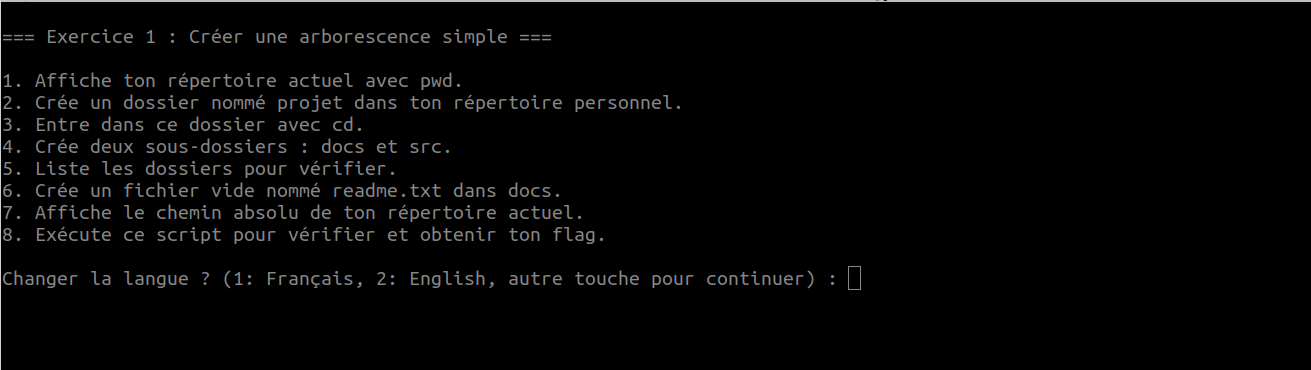
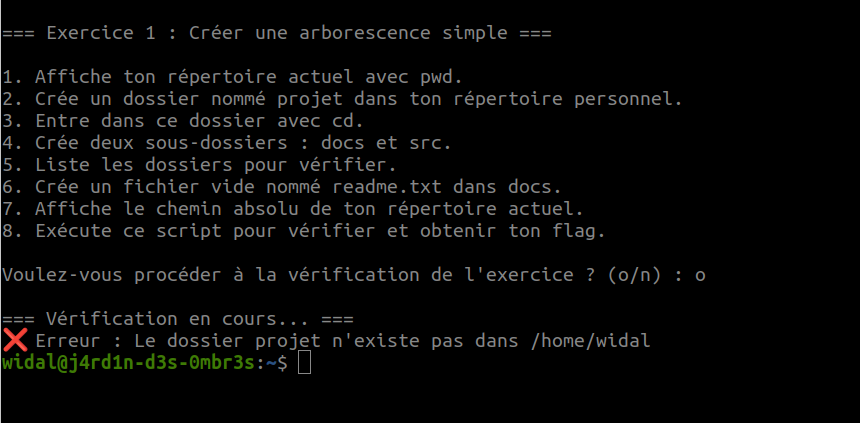
The exercises in this section will be in the form of challenges. There will be five challenges. Each challenge is accessible via a script that you’ll need to run to get started.
- Link to challenge 1’s script: https://raw.githubusercontent.com/N0vachr0n0/NoFD/refs/heads/main/BC_EXO_1.sh
- Link to challenge 2’s script: https://raw.githubusercontent.com/N0vachr0n0/NoFD/refs/heads/main/BC_EXO_2.sh
- Link to challenge 3’s script: https://raw.githubusercontent.com/N0vachr0n0/NoFD/refs/heads/main/BC_EXO_3.sh
- Link to challenge 4’s script: https://raw.githubusercontent.com/N0vachr0n0/NoFD/refs/heads/main/BC_EXO_4.sh
- Link to challenge 5’s script: https://raw.githubusercontent.com/N0vachr0n0/NoFD/refs/heads/main/BC_EXO_5.sh
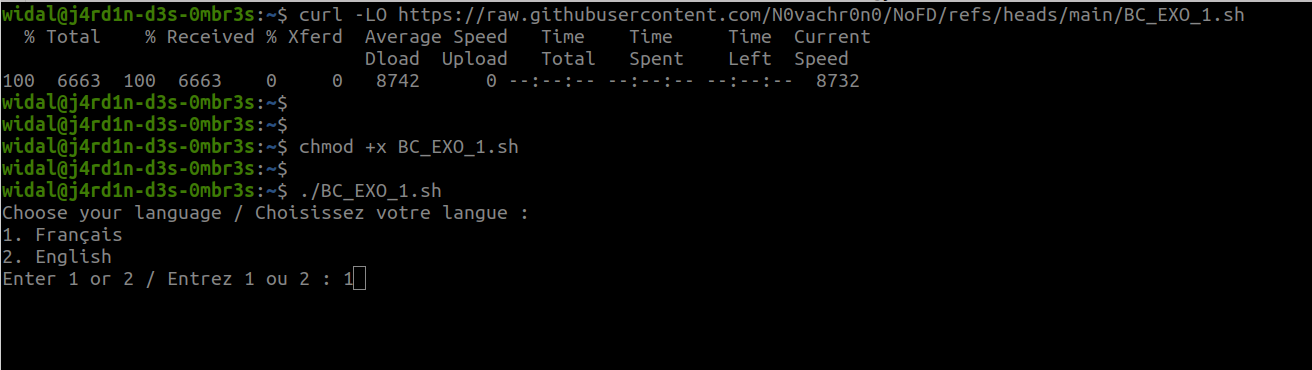
Below is an example of execution:
# Download the challenge 1 script
curl -LO https://raw.githubusercontent.com/N0vachr0n0/NoFD/refs/heads/main/BC_EXO_1.sh

# Make it executable
chmod +x BC_EXO_1.sh

# Run it to start the challenge
./BC_EXO_1.sh
Exercise 3 (Deep dive)
- Do this challenge https://sadservers.com/scenario/saskatoon
Exercise 4 (Bonus)
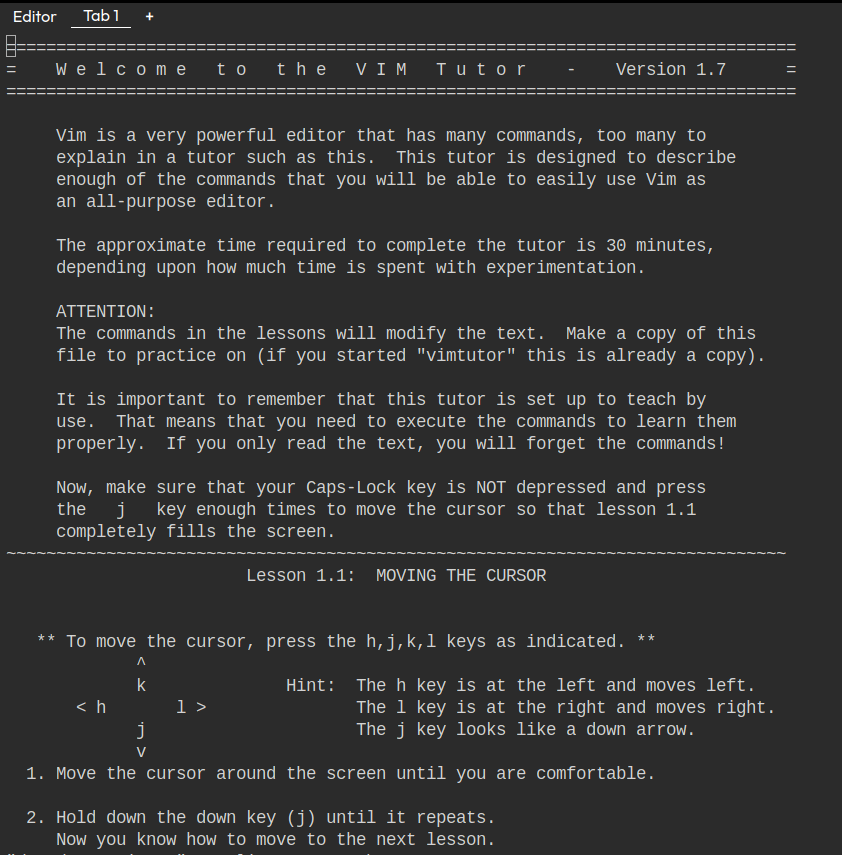
To learn how to master / get familiar with the vim text editor, we recommend going through vimtutor. Open your terminal and type vimtutor. You’ll get output similar to:
Feedback
Let us know what you think of this chapter.
👉🏾 Click here