


Chapter 4: Users and Groups
Foreword
We recommend that you do not use AI to do the exercises since you are in the learning phase.
Introduction
Linux is a true multi-user system! Several users can log in and run tasks at the same time. It also has a single-user mode managed by the kernel, used only for maintenance purposes. Users generally have:
- a login and a password
- a system identifier (userid or uid)
- a primary group, secondary groups
- a home directory, files, data
- running processes
Prerequisites (Repetition is educational 😜)
- Have a virtual machine, a PC, or a Linux environment (ideally Ubuntu)
- Be resilient
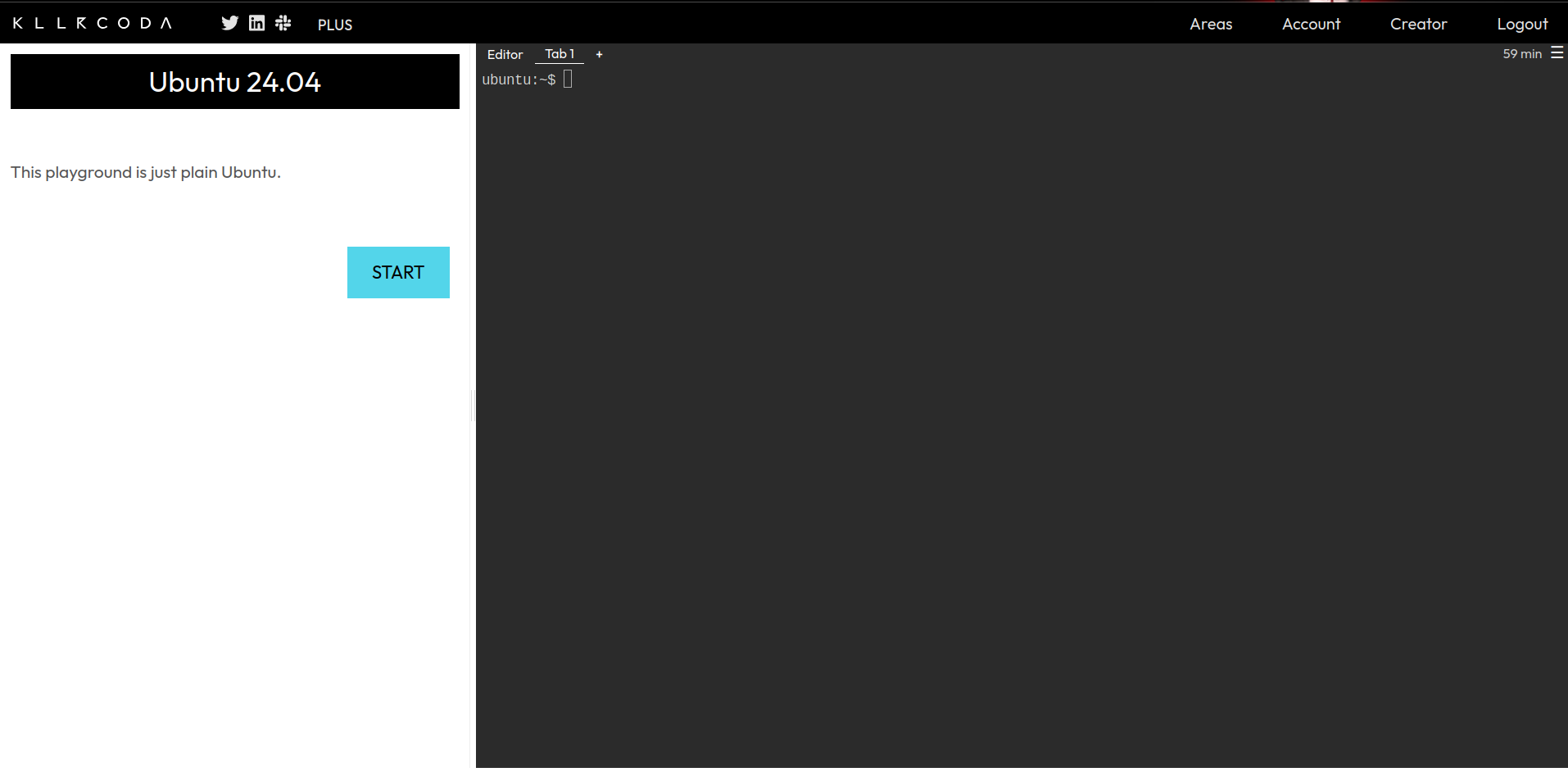
Info: If you don’t have a Linux environment available, you can register at https://killercoda.com and go here https://killercoda.com/playgrounds/scenario/ubuntu to get access to a virtual machine running Ubuntu 24.04 (without a graphical interface, of course!!) for 1 hour, renewable for free.
You’ll then see this view:
User Management
Intro
To test 👨🏾💻👩🏾💻:
- Open your terminal
- Run (line by line):
whoami
id
who
w
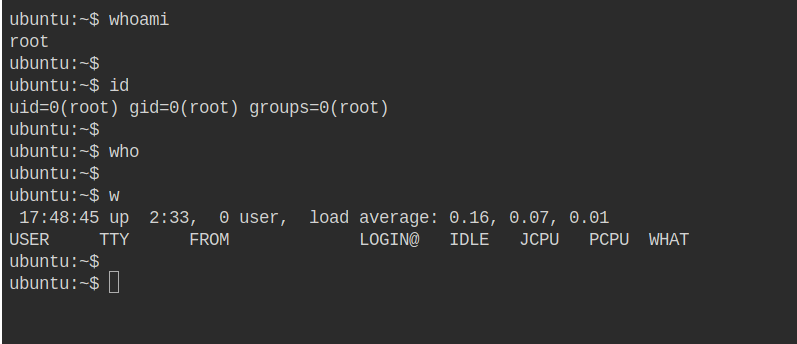
Below is an example of the similar output you’ll get:
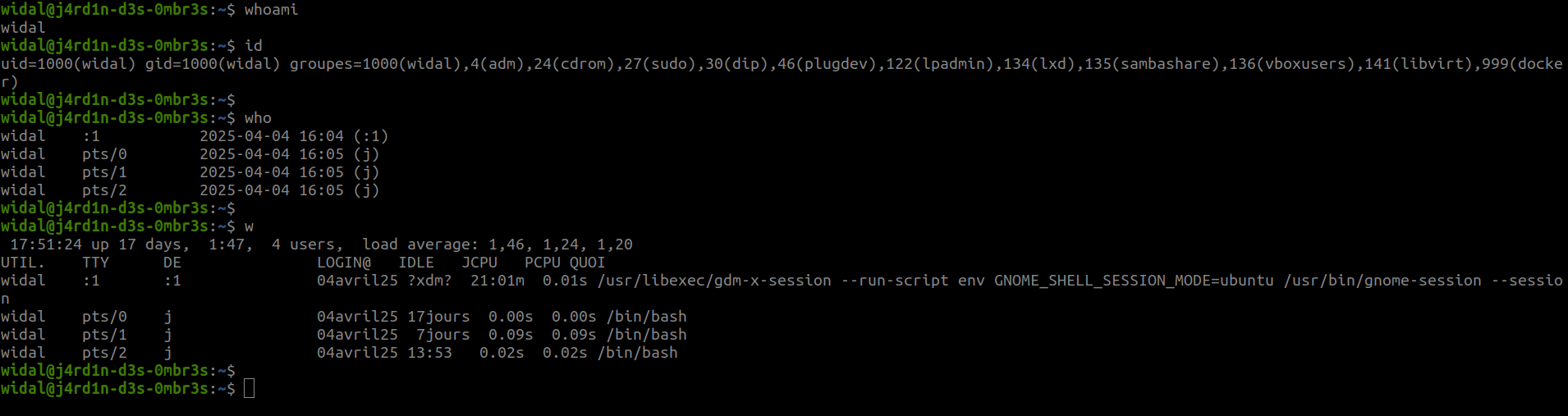
A bit of quick explanation.
Command: whoami
widal@j4rd1n-d3s-0mbr3s:~$ whoami
widal
- Displays the name of the logged-in user.
- Result here:
widal
Command: id
widal@j4rd1n-d3s-0mbr3s:~$ id
uid=1000(widal) gid=1000(widal) groupes=1000(widal),4(adm),24(cdrom),27(sudo),30(dip),46(plugdev),122(lpadmin),134(lxd),135(sambashare),136(vboxusers),141(libvirt),999(docker)
- Displays the identity of the user and their groups:
uid=1000→ user IDgid=1000→ primary group IDgroupes=...→ secondary groups (e.g.:sudo,docker,plugdev, etc.)
Command: who
widal@j4rd1n-d3s-0mbr3s:~$ who
widal    :1           2025-04-04 16:04 (:1)
widal    pts/0        2025-04-04 16:05 (j)
widal    pts/1        2025-04-04 16:05 (j)
widal    pts/2        2025-04-04 16:05 (j)
- Shows who is logged in to the system.
:1→ graphical session (interface)pts/0,pts/1,pts/2→ open terminals (e.g. via terminal or SSH)
Command: w
widal@j4rd1n-d3s-0mbr3s:~$ w
 17:51:24 up 17 days,  1:47,  4 users,  load average: 1,46, 1,24, 1,20
UTIL.    TTY      DE               LOGIN@   IDLE   JCPU   PCPU QUOI
widal    :1       :1               04avril25 ?xdm?  21:01m  0.01s /usr/libexec/gdm-x-session ...
widal    pts/0    j                04avril25 17jours  0.00s  0.00s /bin/bash
widal    pts/1    j                04avril25  7jours  0.09s  0.09s /bin/bash
widal    pts/2    j                04avril25 13:53   0.02s  0.02s /bin/bash
- System summary:
- System up for 17 days
- 4 users connected (Each open terminal as well as the graphical interface represents a connected user)
-
Average load (1, 5, 15 min):
1.46,1.24,1.20- 1.46 → average load over the last minute;
- 1.24 → average load over the last 5 minutes;
- 1.20 → average load over the last 15 minutes.
Brief explanation:
If on a computer with 1 core we have: load average: 1.00, that means the processor is 100% busy. If we have a load average: 4.00 on a computer with 4 cores, that means the 4 cores are fully busy.
- Columns:
UTIL.: UsernameTTY: Terminal usedLOGIN@: Login time/dateIDLE: Idle timeJCPU: Total CPU time used by the userPCPU: CPU time of the active processQUOI: Current process/command
What’s the /etc/passwd file?
- The /etc/passwd file lists all the system’s users and their associated information.
- common to all distributions
- it’s a public file, generally unrestricted for reading (but restricted for writing)
- One line per declared user: login:passwdopt:uid:gid:comment:home dir:shell
- Example:
djo:x:15:15:Djo Dalton:/home/djo:/bin/bash - The root user always has uid 0!
- What does the x mean in the line?
djo:x:15:15:Djo Dalton:/home/djo:/bin/bash- It indicates that the password is located in /etc/shadow
- most certainly encrypted
- most certainly “salted”
- It indicates that the password is located in /etc/shadow
- A user’s password is generally set with the passwd command
Coffee break ☕
We said above that the password is most certainly salted. Yes indeed! the system puts a bit of salt on the password before storing it 🤣. In computer security, salting a password means adding a random value (the “salt”) to the password before encrypting it (or more precisely, hashing it). This prevents two users who chose the same password from having the same fingerprint stored in the system.
To test 👨🏾💻👩🏾💻:
- Open your terminal
- Run (line by line):
cat /etc/passwd
🔁🃏 UNO Reverse !!!
- The /etc/shadow file contains users’ security information (separated by :)
- Line format in /etc/shadow:
login:EncryptedPassword:DateOfLastChangeInDays:MinAge:MaxAge:WarningTime:InactivityTime:ExpirationDate:Reserved
Example:
djo:$y$j9T$3J4GSvuGv7bM4Vn4BRaOm1$3nuzvVPg0VJoidAVUKsMJvf2Hn3Q6.TbC0H5MnqA782:15051:0:99999:7:::
- djo => login
- $y$j9T$3J4xxxxxxxx => Password hashed with “yescrypt” and salted
- 15051 => number of days elapsed since 01/01/1970 until the date of the last password change
- 0 => Minimum age before being able to change the password again (no constraint here)
- 99999 => Maximum age in days before expiration
- 7 => number of days before expiration (the user will be warned)
⚠️ It is not recommended to directly edit the /etc/passwd and /etc/shadow files, to avoid the risk of typos, which would make authentication impossible.
To test 👨🏾💻👩🏾💻:
- Open your terminal
- Run (line by line):
cat /etc/shadow
User management commands
Points to note ⚠️
-
Only the root user (the super user / the administrator) has the ability to use user and group management commands.
-
A regular user must have admin rights. To do this, they’ll need to use the sudo command when using a user management command. Using the sudo command will prompt you to enter your password.
Here’s an example situation.
widal@j4rd1n-d3s-0mbr3s:~$ whoami
widal
widal@j4rd1n-d3s-0mbr3s:~$ useradd avrell
useradd: Permission denied.
useradd : impossible de verrouiller /etc/passwd ; réessayer plus tard.
widal@j4rd1n-d3s-0mbr3s:~$ sudo useradd avrell
[sudo] Mot de passe de widal :
widal@j4rd1n-d3s-0mbr3s:~$ id avrell
uid=1002(avrell) gid=1002(avrell) groupes=1002(avrell)
widal@j4rd1n-d3s-0mbr3s:~$
widal@j4rd1n-d3s-0mbr3s:~$ echo "user avrell is there"
user avrell is there
widal@j4rd1n-d3s-0mbr3s:~$
1. useradd – Add a new user
sudo useradd username
- Creates a new user.
- ⚠️ By default, does not create the home directory (
/home/username) without an option.
Example:
sudo useradd -m alice
- Creates the user
alice - The
/home/alicefolder is created with the-moption.
2. usermod – Modify an existing user
sudo usermod [options] username
- Used to change information about a user: group, directory, shell, etc.
Examples:
sudo usermod -aG sudo alice
This adds alice to the sudo group.
sudo usermod -d /new/path alice
This changes alice’s home directory.
3. passwd – Change a user’s password
sudo passwd username
This allows you to set or change a user’s password.
Example:
sudo passwd alice
This prompts you to enter a new password for alice.
4. userdel – Delete a user
sudo userdel username
- Deletes the user without deleting their home directory.
Example:
sudo userdel alice
Also delete their directory:
sudo userdel -r alice
adduser vs useradd
| Command | Description |
|---|---|
useradd |
Low-level command: simple, but requires more options. |
adduser |
Interactive script: guides you step by step to create a user (password, info, home directory, shell, etc.). |
Example:
sudo adduser bob
This starts a wizard to create a complete user.
⚠️ EXTRA INFO:
It can happen that there’s a hiccup (usually when using useradd) and your user ends up without a home directory. You can fix this hiccup with the mkhomedir_helper command. (e.g. mkhomedir_helper myuserbob).
TLDR (Quick summary)
| Command | Role |
|---|---|
useradd |
Create a user (simple) |
adduser |
Create a user (assisted) |
usermod |
Modify an existing user |
passwd |
Change the password |
userdel |
Delete a user |
mkhomedir_helper |
Create a user’s home directory |
Commands to switch users
- su: Switches user or opens a root session (e.g.
su usernameto switch to another user, orsuto become root).- Useful options:
su - username(loads the target user’s environment, as if it were a new login).
- Useful options:
- sudo: Runs a command as another user, generally root (e.g.
sudo commandto runcommandwith root privileges).- Useful options:
sudo -u username command(runs the command as a specific user).
- Useful options:
- whoami: Displays the current user (e.g.
whoamireturns the name of the active user, useful for checking after a switch).
Exercise ⚔️
- Link to the challenge script: https://raw.githubusercontent.com/N0vachr0n0/NoFD/refs/heads/main/USER_EXO_1.sh
Below is an example run:
# We download the challenge 1 script
curl -LO https://raw.githubusercontent.com/N0vachr0n0/NoFD/refs/heads/main/USER_EXO_1.sh

# We make it executable
chmod +x USER_EXO_1.sh

# We run it to start the challenge
./USER_EXO_1.sh
Group Management
Intro
- A group is a set of users who have things in common
- the same permissions on certain files
- the same applications used
- user classification
- etc…
- Each user has a base (primary) group, which is assigned when they’re created. It lets them assign this group to the files they create. This base group often has the same name as the user.
- A group generally has:
- a system ID (group id)
- a group name
- a group password
- a list of users who belong to the group
To test 👨🏾💻👩🏾💻:
- Open your terminal
- Run (line by line):
groups #To see the group(s) you belong to id #To see your primary group and secondary groups - The /etc/group file lists all the system’s groups and their associated information
- Like /etc/passwd, it’s common to all distributions
- it’s also a public file readable by everyone
- Nomenclature of /etc/group:
groupname:grouppassword:gid:userlist- Example:
admins:x:10:djo,jack,william,avrell
- Example:
- As with users, the root group always has gid 0!
To test 👨🏾💻👩🏾💻:
- Open your terminal
- Run:
cat /etc/group
The x you’ll see here again represents the group’s password. It’s located in /etc/gshadow, and just like for users in /etc/shadow:
- Like /etc/shadow, /etc/gshadow should not be freely accessible (Info: meddling with the root group is dangerous!)
- Line format in /etc/gshadow:
name:encrypted_password:administrators:members- Example:
daemon:$1$bmONNXPt$wRx7Xkxag20WhcT/kBc3p0::root,bin,daemon- Daemon group
- Password hashed with MD5 and salted
- root, bin and daemon can take on this base group without being prompted for the password
- Example:
- It is not recommended to directly edit the /etc/group and /etc/gshadow files
The sudo or wheel group
-
In the Linux world, the sudo and wheel groups are groups that allow a regular user to use administrator rights. Let’s say the rights of the root user. sudo and wheel are privileged groups. They’re also called the sudoers group.
-
sudo, besides being a group, is first and foremost a package / a command that lets a regular user run a command / an application as an administrator (root). A quick nod to “Run As Administrator” or “Exécuter en tant qu’administrateur” on Windows.
Group management commands
⚠️ Don’t forget the points to note ⚠️
- groupadd: Creates a new group (e.g.
groupadd group_nameto add a group namedgroup_name). - groupdel: Deletes a group (e.g.
groupdel group_nameto delete thegroup_namegroup). - groupmod: Modifies a group’s attributes (e.g.
groupmod -n new_name old_nameto rename a group). - usermod: Modifies a user’s group membership.
- Useful options:
usermod -g primary_group username(changes the primary group),usermod -aG secondary_group username(adds the user to a secondary group without removing the others).
- Useful options:
- gpasswd: Manages a group’s passwords and members (e.g.
gpasswd -a username groupto add a user, orgpasswd -d username groupto remove them). - getent: Displays information about a group (e.g.
getent group group_nameto see the group’s details, such as members). - groups: Lists the groups a user belongs to (e.g.
groups usernameto display the groups of the specified user, orgroupsfor the current user).
Managing the /etc/sudoers file
The /etc/sudoers file is a configuration file used on Linux/Unix systems to define user and group permissions regarding the use of the sudo command. It determines who can run commands as administrator (root) or another user, and which specific commands they can run. This file is crucial for security, since a misconfiguration could either block legitimate access or grant too many privileges.
- Location:
/etc/sudoers(main file). - Format: Contains rules in the form
user host = (target_user) commands. - Example line:
user ALL=(ALL) ALLmeans thatusercan run all commands on all hosts as any user.
The sudoers file should never be edited directly with a regular editor (like nano or vim), because a syntax error can lock you out of sudo. The recommended method is to use the visudo command, which checks the syntax before saving.
sudo visudo
Below are a few example lines.
| Line | Meaning |
|---|---|
jean ALL=(ALL) /usr/bin/apt, /usr/bin/systemctl |
The user jean is only allowed to run the /usr/bin/apt and /usr/bin/systemctl commands as root or any other user, from any host. |
jean ALL=(ALL) NOPASSWD: ALL |
The user jean can run all commands as any user without having to enter their password. |
jean ALL=(ALL) ALL |
The user jean can run all commands as any user, but will have to enter their password. |
%admins ALL=(ALL) ALL |
All members of the admins group can run all commands as any user, with the obligation to enter their password. (Watch out for the %) |
To finish in style, I invite you to do some research on:
sudo -l
Exercise ⚔️
Run the script to start the challenge like a boss 😉.
- Link to the challenge script: https://raw.githubusercontent.com/N0vachr0n0/NoFD/refs/heads/main/Group_EXO_1.sh
Feedback
Give us your feedback on this chapter.
👉🏾 Click here