


Chapter 7: Service Management
Foreword
We recommend that you do not use AI to do the exercises because you are in the learning phase.
Introduction
In this section, we will cover service management on Linux.
Prerequisites
Same old story. 😉
Let’s begin our exploration
Services (or daemons)
Services, also called daemons, are essential components of a Linux system. They run in the background, without direct interaction with the user, and handle fundamental tasks for the system to work properly. In particular, they keep the system operational and add extra functionality.
Generally, we distinguish two main types of services (system service and service installed by a user):
System services
These are the internal services required to boot the system.
They handle important hardware tasks and initialize the components essential to the operation of the operating system.
They are comparable to a car’s engine and transmission: they start as soon as you turn the ignition key and are indispensable for the car to move. Without them, the system could not function.
User-installed services
These services are added by users or administrators.
They generally include server applications or other background processes that provide specific functionality.
They’re like a car’s options (air conditioning, GPS…): not essential to make the car move, but very useful for improving comfort or adding features according to the user’s needs.
TLDR (Let’s talk concretely about a service)
An application doesn’t always need a service to work. However, a service plays an essential role in managing an application’s lifecycle. In particular, it allows the application to start automatically when the system boots, or to be easily controlled (start, stop, restart) as needed.
Take OpenSSH, for example, which lets you access a machine remotely via the SSH protocol. Without this service, you would have to manually run a fairly complex command every time you wanted to enable this feature. What’s more, if the machine reboots, or if the service is accidentally interrupted, or if you modify the configuration file, you would have to retype this command every time.
This makes managing the application tedious and unreliable. That’s where a service comes in, simplifying all this management. In OpenSSH’s case, this service is called sshd. It not only starts OpenSSH automatically at boot, but also lets you manage its operation easily with commands like systemctl start sshd, systemctl stop sshd, or systemctl restart sshd.
How do you recognize a daemon (a service)?
Daemon names often end with the letter d.
For example:
sshd: the SSH daemon (for secure connections),systemd: the main initialization system,httpd: web daemons,crond: scheduled task manager.
Just as a car relies on both its essential parts and its options to provide a complete experience, a Linux system uses both system services and user services to work efficiently and meet everyone’s needs.
Common goals related to services or processes
In general, here are the main actions you’ll want to perform on a service or process:
- Start / Restart a service or process
- Stop a service or process
- See what is happening or what happened with a service or process
- Enable / Disable a service at system startup
- Find a service or process
The role of systemd
Most modern Linux distributions use systemd as a replacement for SystemV as the init system.
It’s the first process launched at system startup, and it holds the process identification number (PID) 1.
Every process on Linux has a unique PID, visible in the /proc/ directory, where all information about running processes is stored.
A process can also have a PPID (Parent Process ID), meaning it was launched by another process, making it that process’s child process.
Commands related to service management
The systemctl command
systemctl is the main tool for managing services, units, and system startup on Linux distributions using systemd (such as Ubuntu, Debian, Fedora, Arch, etc.).
| Action | Command | Description or Comment |
|---|---|---|
| List all services | systemctl list-units --type=service |
Displays the list of active services |
| Start a service | sudo systemctl start service_name |
Example: sudo systemctl start apache2 |
| Check whether a service is enabled at startup | sudo systemctl is-enabled service_name |
Example: sudo systemctl is-enabled apache2 |
| Stop a service | sudo systemctl stop service_name |
Example: sudo systemctl stop apache2 |
| Restart a service | sudo systemctl restart service_name |
Useful after a configuration change |
| Display a service’s unit file | sudo systemctl cat service_name |
Displays a service’s configuration file |
| Reload a service’s configuration | sudo systemctl reload service_name |
Without fully restarting the service |
| Enable a service at startup | sudo systemctl enable service_name |
So it starts automatically |
| Disable a service at startup | sudo systemctl disable service_name |
To prevent it from starting automatically |
| Check a service’s status | systemctl status service_name |
Shows whether the service is active or not |
| Mask (strongly disable) a service | sudo systemctl mask service_name |
Prevents any manual or automatic launch |
| Unmask a service | sudo systemctl unmask service_name |
Cancels the effect of mask |
The journalctl command
journalctl is the tool for reading system or application logs managed by systemd.
| Action | Command | Description or Comment |
|---|---|---|
| View all system logs | sudo journalctl |
Paginated display (use ↑ ↓ to navigate) |
| View logs for a specific service | sudo journalctl -u service_name |
Example: sudo journalctl -u ssh (Debian = ssh, Redhat = sshd) |
| View logs in real time | sudo journalctl -f |
“Follow” mode (like tail -f) |
| View logs from a specific time | sudo journalctl --since "1 hour ago" |
Possible options: yesterday, 2024-01-01, etc. |
| View logs up to a certain date | sudo journalctl --until "2024-01-01 12:00" |
Displays logs up to 01/01/2024 at 12:00 |
| View high-priority logs (errors) | sudo journalctl -p err |
Priorities: emerg, alert, crit, err, warning, notice, info, debug |
| View logs from the current boot | sudo journalctl -b |
-b -1 for the previous boot |
| View logs related to a PID | sudo journalctl _PID=1234 |
Replace 1234 with a process number |
| Add contextual explanations to logs | sudo journalctl -x |
Enriches certain messages with explanations drawn from systemd’s catalogued message database |
| Export logs to a file | sudo journalctl > logs.txt or sudo journalctl -u ssh > ssh_logs.txt |
For later analysis |
As a reminder, a log (or logbook) is a record of events generated by an application, a service, or the system.
Training ⚔️
Exercise 1 (Easy)
This exercise will consist of installing the Apache HTTP Server software, which will let your machine act as a web server. You will then move on to managing its service.
- Install the Apache software (the package name is apache2 on Debian distributions and httpd on RedHat distros)
- Check the status of the apache2 service
- Start the apache2 service
- Check the status of the apache2 service
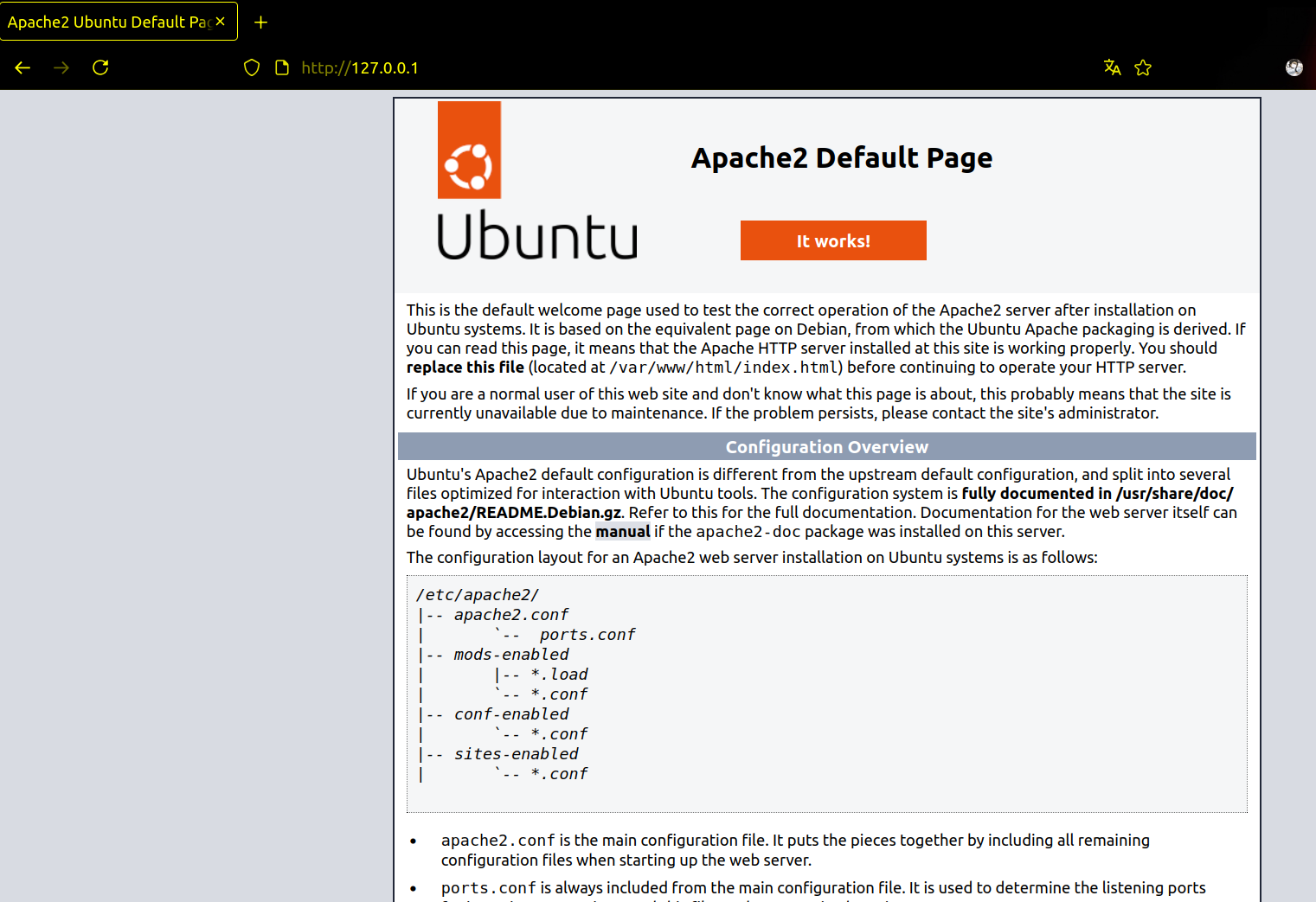
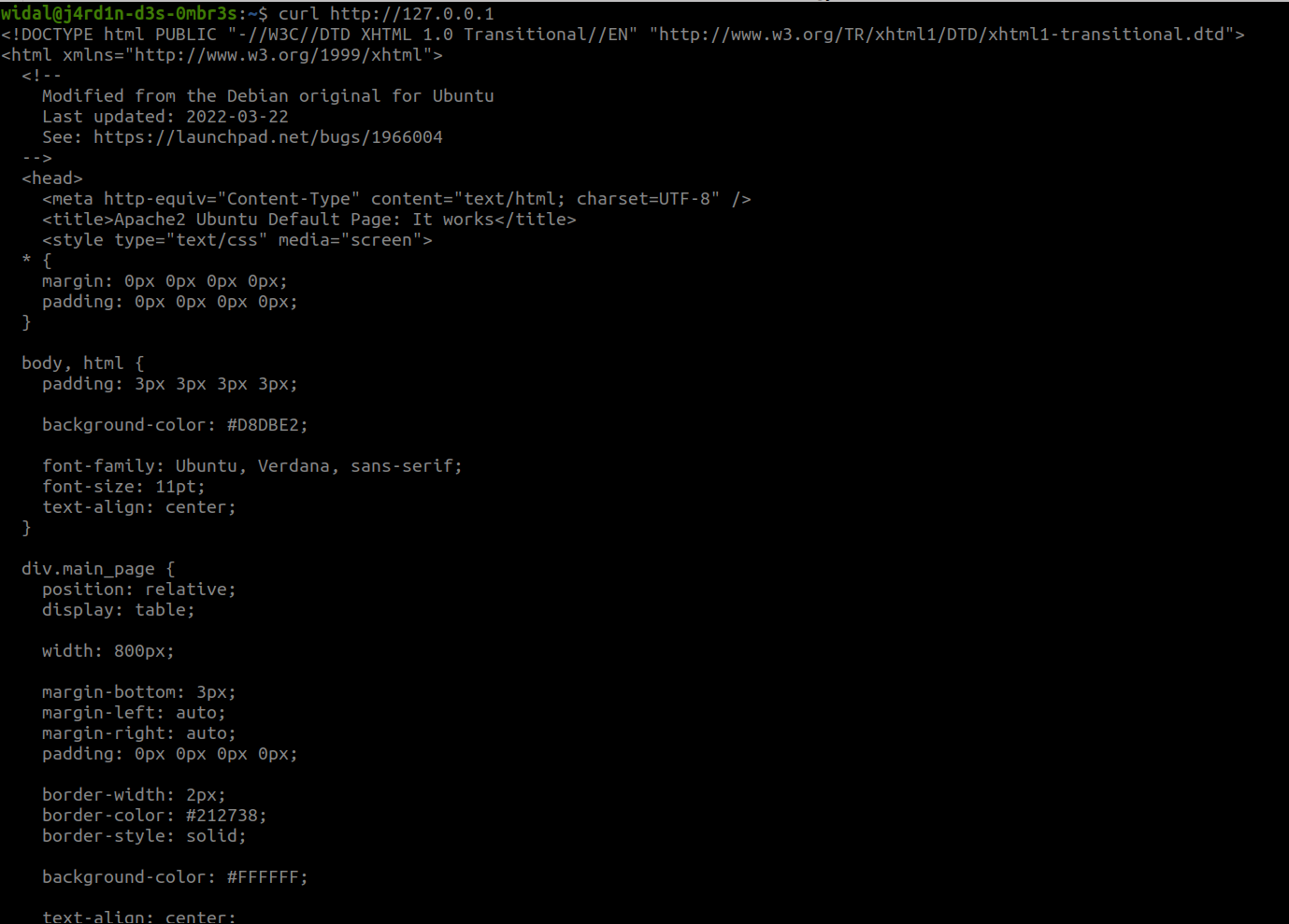
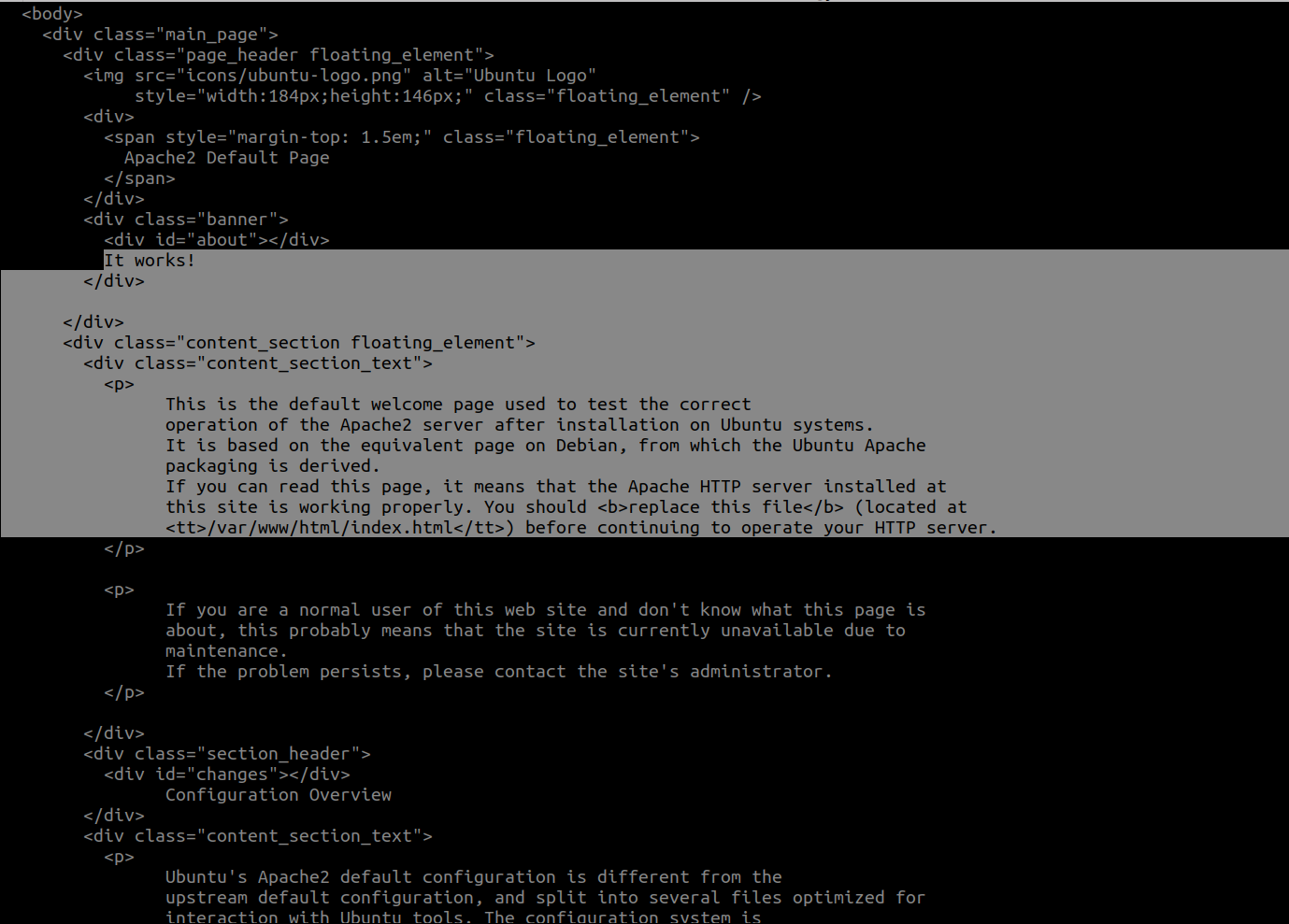
- Access the default web page hosted by your web server (open your browser and enter “http://127.0.0.1”. If you don’t have a graphical interface, run a curl against http://127.0.0.1)
Example results:
- Stop the apache2 service and refresh the web page or rerun the curl.
- Make the apache2 service start automatically when your machine boots. Verify this by rebooting your machine.
- Make sure the service is active and display its logs with journalctl.
- Display the unit file for the apache2 service.
Exercise 2 (Let’s make things a bit more complicated)
This exercise will consist of creating a custom service (bonjour.service) that runs a simple script.
-
Create a Bash script
/usr/local/bin/dis_bonjour.shthat writes a sentence to a file:#!/bin/bash while true; do echo "Hello, it is $(date)" | sudo tee -a /var/log/bonjour.log > /dev/null sleep 60 doneMake it executable:
sudo chmod +x /usr/local/bin/dis_bonjour.sh - Create a unit file for this service:
sudo nano /etc/systemd/system/bonjour.serviceAdd the following content:
[Unit] Description=Bonjour - Custom service [Service] ExecStart=/usr/local/bin/dis_bonjour.sh User=root Environment="PATH=/usr/bin:/bin" StandardOutput=journal [Install] WantedBy=multi-user.target - Enable, start, and check your service:
sudo systemctl daemon-reload sudo systemctl enable bonjour sudo systemctl start bonjour sudo systemctl status bonjour - Check the contents of the logged file:
cat /var/log/bonjour.log - Check the service’s logs:
journalctl -u bonjour
Exercise 3 (Deep Dive)
Run the script to start the challenge like a pro 😉.
- Link to the challenge script: https://raw.githubusercontent.com/N0vachr0n0/NoFD/refs/heads/main/SVC_SYSTEMD_EXO.sh
Feedback
Let us know what you think about this chapter.
👉🏾 Click here