

Chapter 6: Package Management
Foreword
We recommend that you do not use AI to do the exercises because you are in the learning phase.
Introduction
You will often need to install software that is not provided with your distribution, or remove unwanted software so that it doesn’t take up hard drive space. In this section, we’ll cover the management of software packages or applications on Linux.
Prerequisites
Same old story. 😉
Package managers on linux
First of all, a package is an archive containing a set of files and directories to be deployed on the operating system so that a piece of software can be installed and work properly. A package may require other packages to be present in order to function. These are called dependencies.
Linux repositories (repo or repository)
A Linux repository is a place (often on the Internet) where software packages are stored, ready to be downloaded and installed. We can also think of repositories as supermarkets or well-organized storehouses where we find these packages.
On linux, there are several types of repositories:
- Official repositories: Those provided by the linux distribution itself.
- Third-party repositories: Added manually by the user when installing software.
Linux repositories are defined in one or more files on your OS. On Debian/Ubuntu, they are listed in /etc/apt/sources.list and in the files in the /etc/apt/sources.list.d/ folder.
Examples of lines in sources.list:
Types: deb
URIs: http://archive.ubuntu.com/ubuntu
Suites: noble noble-updates noble-backports
Components: main universe restricted multiverse
Signed-By: /usr/share/keyrings/ubuntu-archive-keyring.gpg
deb http://archive.ubuntu.com/ubuntu/ focal main restricted universe multiverse
Package management tools on linux
Installing a package goes through a manager / tool. Below is a table presenting a few managers.
| Manager | Distributions concerned | source.list file or equivalent | Example commands |
|---|---|---|---|
| APT / APT-GET | Debian, Ubuntu, Linux Mint, Kali, etc. | /etc/apt/sources.list and /etc/apt/sources.list.d/ |
apt install, apt update |
| DPKG | Debian-based | Not applicable (local package) | dpkg -i package.deb, dpkg -r package |
| DNF | Fedora, RHEL 8+, CentOS Stream | /etc/yum.repos.d/ |
dnf install, dnf upgrade |
| YUM | CentOS 7, RHEL 7, Fedora <21, Rocky Linux 7 | /etc/yum.repos.d/ |
yum install, yum update |
| ZYPPER | openSUSE, SUSE Linux Enterprise | /etc/zypp/repos.d/ |
zypper install, zypper update |
| PACMAN | Arch Linux, Manjaro, EndeavourOS | /etc/pacman.conf + /etc/pacman.d/mirrorlist |
pacman -S, pacman -Syu |
| SNAP | All distros supporting Snap | Managed via snap install or internal files |
snap install, snap refresh |
| FLATPAK | All distros supporting Flatpak | /var/lib/flatpak/ or ~/.local/share/flatpak/ |
flatpak install flathub, flatpak update |
| APPIMAGE | All distros | No repository file needed | Download → make executable → run |
Info:
⚠️ dpkg does not automatically manage dependencies. If you get an error, use apt –fix-broken install.
Exploring the APT (Advanced Package Tool) manager
APT is one of the most popular Linux package managers, since it ships with Ubuntu and other Debian-based distributions. Here are a few examples in action.
| Action | APT command | Description |
|---|---|---|
| Update the package list | sudo apt update |
Downloads the updated package list from the repositories. |
| Install a package | sudo apt install package_name |
Installs the specified package and its dependencies. |
| Remove a package | sudo apt remove package_name |
Uninstalls the package but leaves the configuration files. |
| Remove a package + config | sudo apt purge package_name |
Removes the package AND its configuration files. |
| Update packages | sudo apt upgrade |
Updates all installed packages to their latest version. |
| Upgrade the system | sudo apt full-upgrade |
Like upgrade, but removes or installs packages if needed. |
| Search for a package | apt search package_name |
Searches for a package containing the given keyword. |
| Get info about a package | apt show package_name |
Displays details about a package (version, size, dependencies, etc.). |
| Clean up old downloads | sudo apt clean |
Removes old downloaded .deb files. |
| Remove unnecessary packages | sudo apt autoremove |
Removes packages that were installed automatically and are no longer needed. |
| List available packages | apt list |
Displays all available packages (installed or not). |
| List installed packages | apt list --installed |
Shows only the packages currently installed. |
Sorry to those of you who aren’t on a debian-based distribution 😝.
INFO: The –help option (two dashes please 🫠) or -h, and the man command, are your best friends for getting info on how to use a command.
Good to know
Installing software on linux is mostly done via a package manager, but it’s also possible to install software manually via GitHub repositories or other sources and methods.
Training ⚔️
Research exercise
- Find out why there are official and unofficial repositories
- Find the differences between a free and a non-free repository
- Find the differences between the flatpak and snap package managers
- Find the differences between the snap and apt package managers
Exercise 1
- Install the figlet application and display the text “it’s crazy” with figlet
- Install the cowsay application and display the text “subarashi” with cowsay
- Install the atop application and view your system metrics.
Test: Type figlet -v, cowsay -h and atop -V to verify the installation.
Exercise 2 (Deep dive)
Time to get serious!!!
This challenge consists of finding the flag.zip file and extracting it to obtain the flag (a special string).
Before starting the challenge, you’ll need to set up the environment as follows:
Info: Pay attention to your prompt.
# Installing the prerequisite: the docker app
sudo apt update
sudo apt install -y docker.io
sudo systemctl enable docker --now
sudo usermod -aG docker $USER # So you can use the docker command without sudo in your next sessions

# Initializing the environment
sudo docker ps # Shows the containers currently running
sudo docker run -dit --name ctf-sysadmin fs0ci3ty/adminsys_basic-ctf # Downloads and sets up the challenge container
sudo docker ps
sudo docker exec -it ctf-sysadmin bash # Lets you enter the Docker container and launch a bash terminal to run commands there.
At this point you should be inside the docker container and not in the terminal attached to your OS, as shown below.
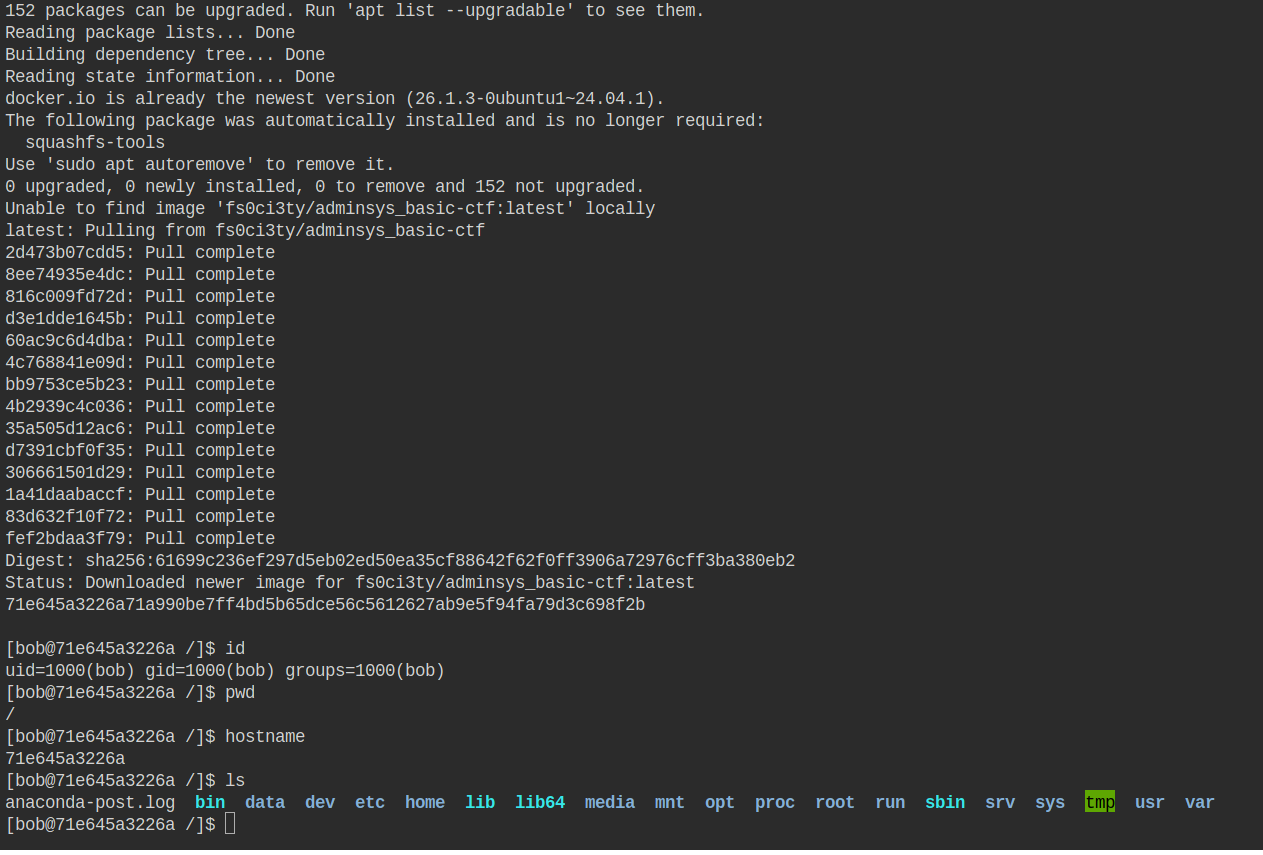
Now that the challenge environment is ready, you can start the challenge, but keep the following points in mind:
- Extracting flag.zip must be done inside the docker container.
- Network issues, package installation problems, and other hiccups encountered in the docker container are completely normal 😈.
- Avoid using AI to get the solution directly. That is counterproductive to your learning. At best, you can assign it the role of linux sysadmin tutor so it guides you without giving you the solution directly.
Good luck!
INFO
- Quick lesson: Docker is a tool that lets you run applications in isolated environments called “containers”. It’s like a mini virtual machine, but much lighter and faster to start. In our case, Docker lets us set up a super lightweight version of a linux distribution ready to be used inside a container.
- The challenge hints can be found here: https://github.com/N0vachr0n0/NoFD/blob/main/Hint_PKG_EXO_2.md
- The environment can be reset as follows:
exit # To exit the container and go back to your original prompt
sudo docker rm -f ctf-sysadmin # Removing the container
sudo docker run -dit --name ctf-sysadmin fs0ci3ty/adminsys_basic-ctf
sudo docker exec -it ctf-sysadmin bash
Want more on Docker? Head over here => https://openclassrooms.com/fr/courses/8431896-optimisez-votre-deploiement-en-creant-des-conteneurs-avec-docker
I also invite you to search for “docker rootless” and “podman vs docker”
One last thing ⚠️:
If you use Docker on your VPS or private server accessible over the internet, please pay attention to the ports Docker listens on, because they create a rule that bypasses your firewall rules. This is normal Docker behavior. We therefore invite you to read these articles:
- https://docs.docker.com/engine/network/packet-filtering-firewalls/
- https://forums.docker.com/t/need-more-clarifications-for-firewall-prerequisites/142657
- https://medium.com/@akhshyganesh/docker-vs-your-firewall-the-silent-port-sneak-6e4bad366a5e
- https://rithwik.hashnode.dev/how-docker-can-be-sneaky-around-your-ufw-firewall
Feedback
Let us know what you think about this chapter.
👉🏾 Click here